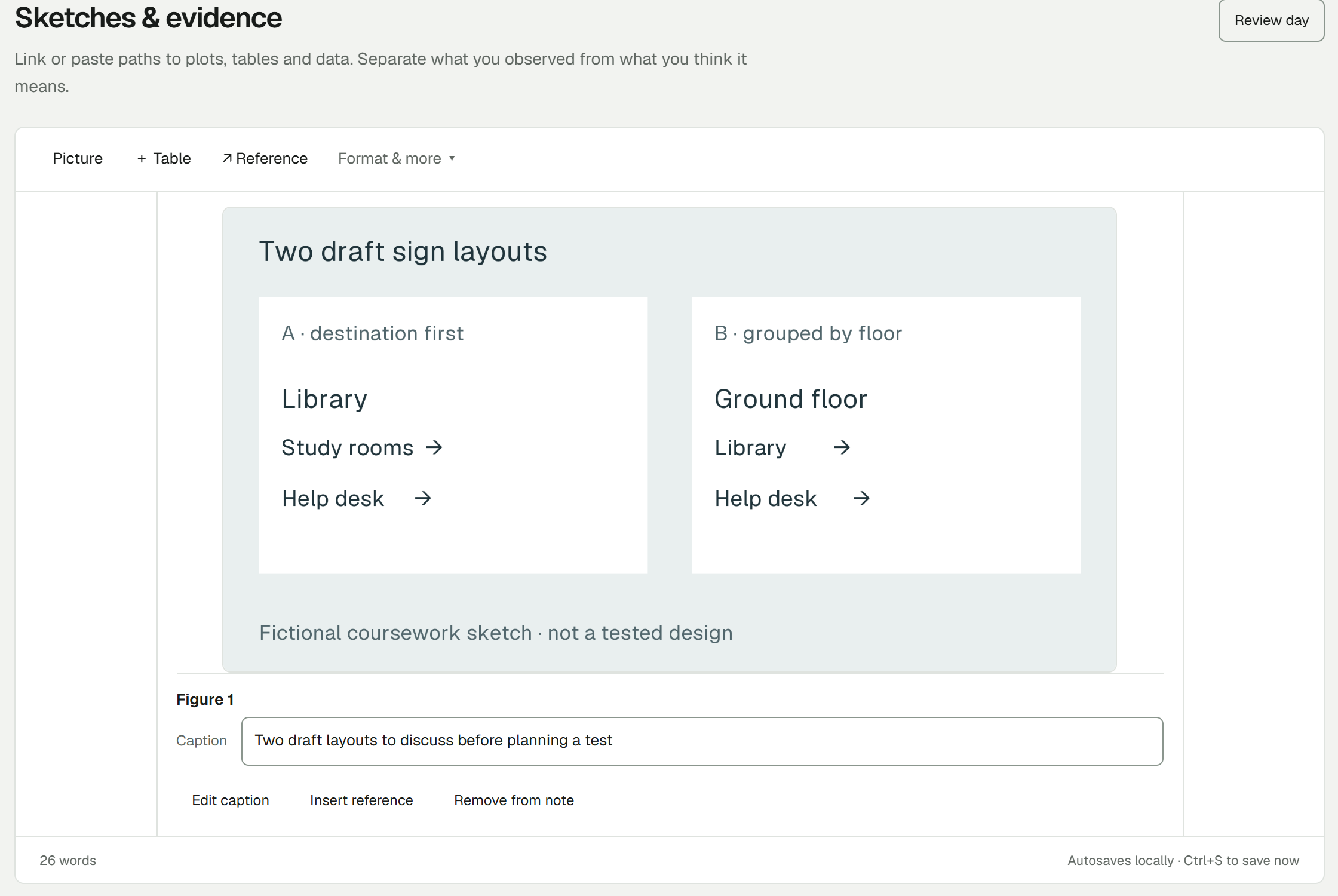
Dissertation
Turn a broad question into daily work, source notes and a clear next action.
Clean layout + worked example + instructions
Notebook data only; install the app separately
 Research Logbook
Three free starting layouts for Research Logbook, with worked examples you can open on Windows.
Choose your starter ↓No signup. Each ZIP includes a clean layout, a separate fictional example and opening instructions.
Turn a broad question into daily work, source notes and a clear next action.
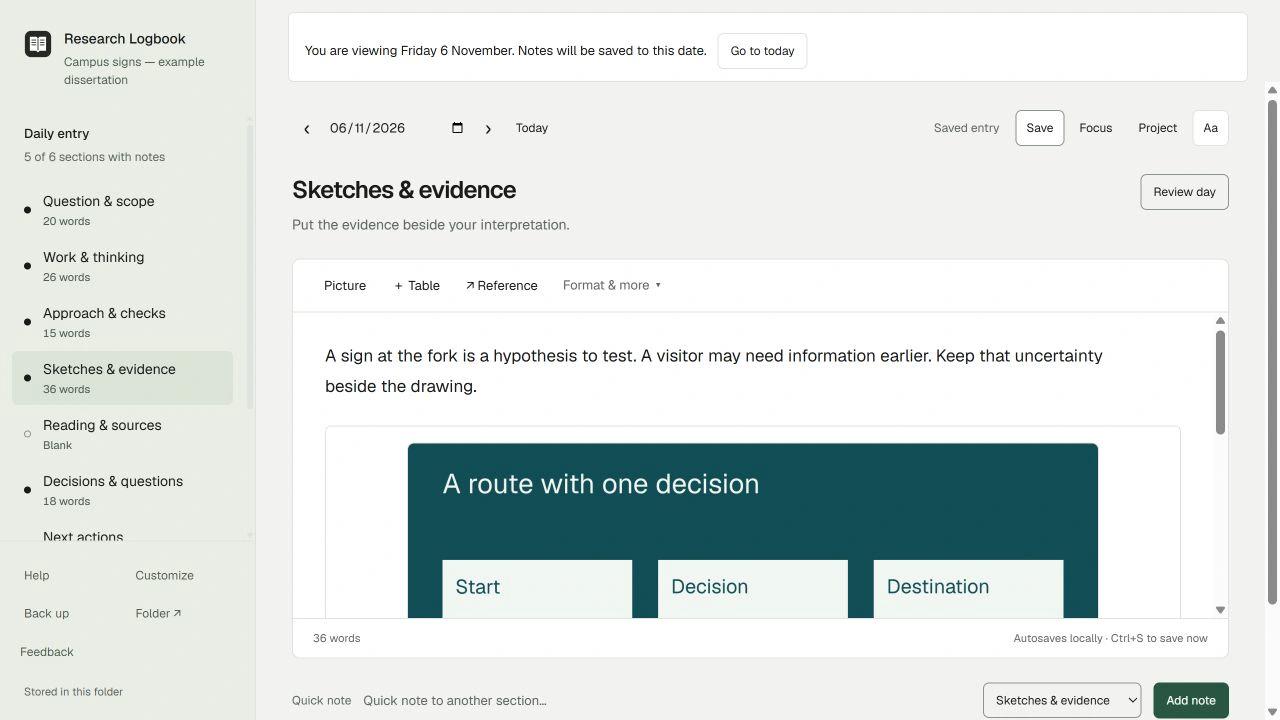
Keep each source’s claim, your interpretation and the next check easy to distinguish.
Put sketches, decisions and the work still to do beside the notes that explain them.
The worked examples show questions, evidence and unfinished thinking across three days. Everything is fictional. Use them to explore, then open the separate clean layout for your own project.
Turn a broad question into daily work, source notes and a clear next action.
Clean layout + worked example + instructions
Notebook data only; install the app separately
Keep each source’s claim, your interpretation and the next check easy to distinguish.
Download literature review ZIP ↓
Read the literature review guide →
Clean layout + worked example + instructions
Notebook data only; install the app separately
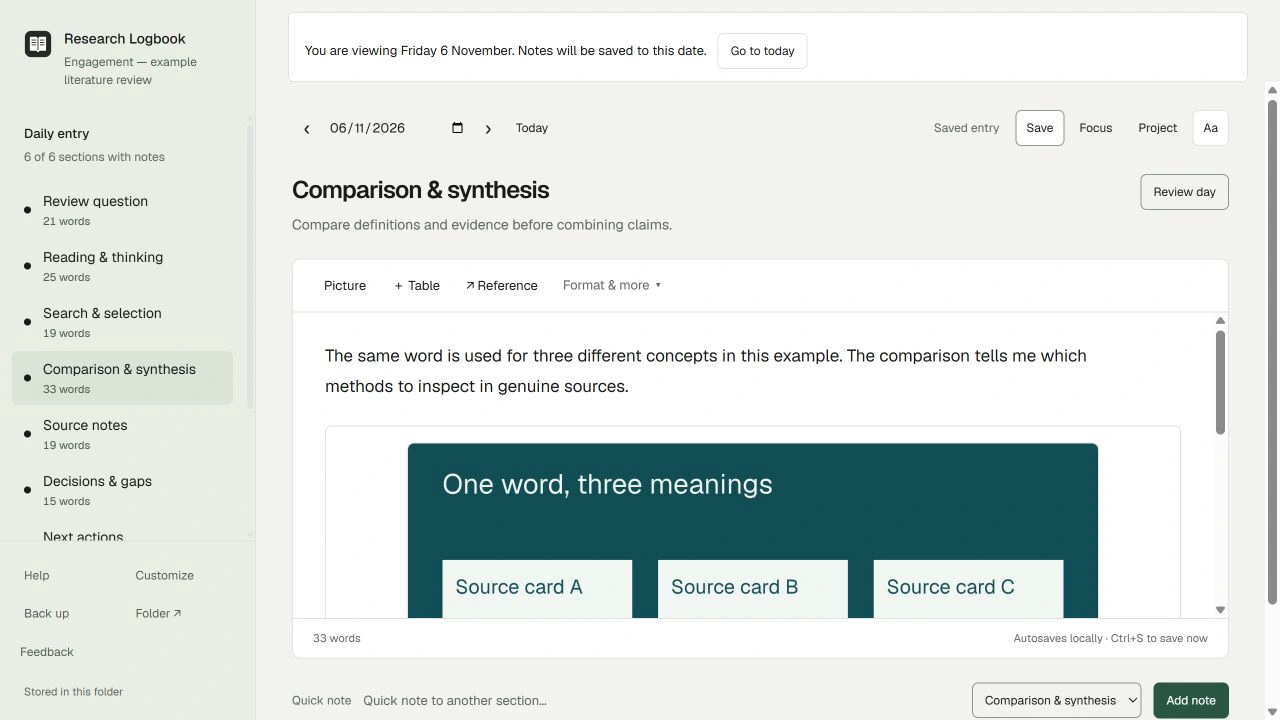
Put sketches, decisions and the work still to do beside the notes that explain them.
Read the course project guide →
Clean layout + worked example + instructions
Notebook data only; install the app separately
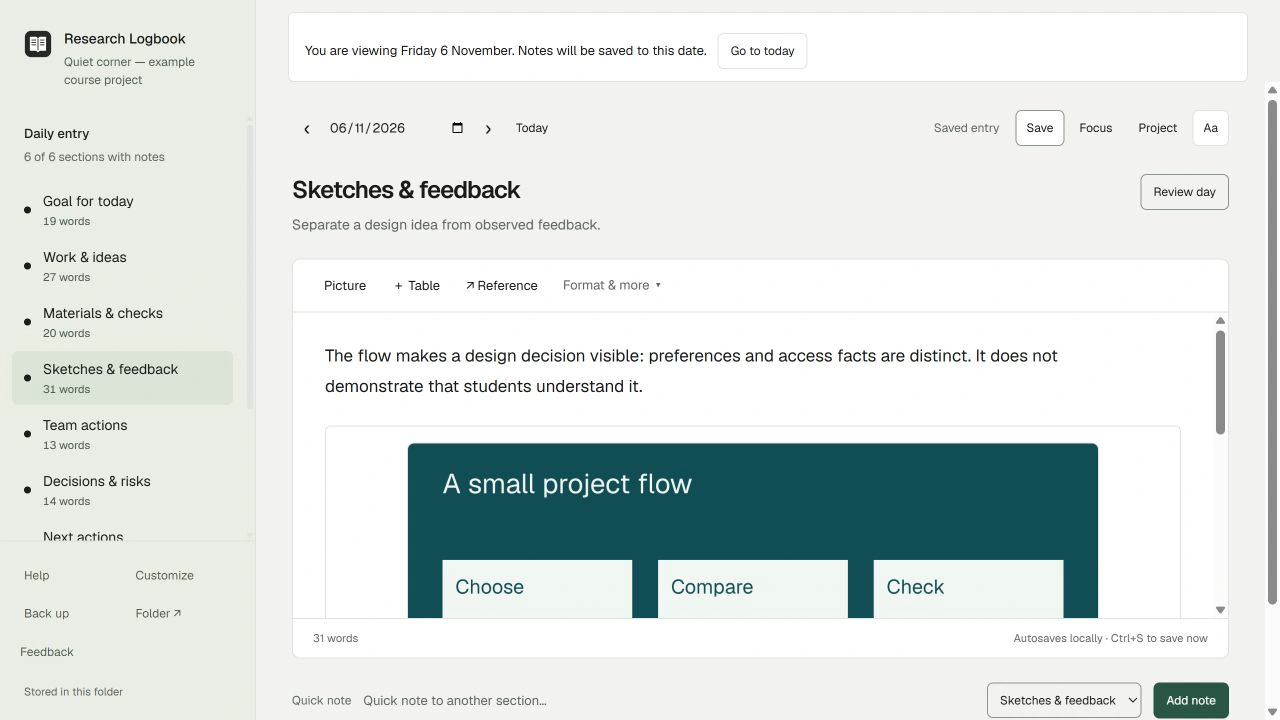
Each download contains two notebook folders. Keep the clean layout separate from the worked example.
Get the free Windows app ↗Windows 10 build 19041+ or Windows 11, x64. Phone and Mac visitors can read these guides; the full app runs on Windows.
In File Explorer, right-click the downloaded ZIP and choose Extract All. Extract into a new folder in Documents. Keep both notebook folders separate.
Install Research Logbook from Microsoft Store and select Open. In an existing notebook, use About → Open another notebook folder. You can also hold Shift while opening the app to choose a folder.
Choose the folder named Worked example or Blank notebook that contains settings.json and logbook. Do not choose the ZIP or the parent folder.
In the worked example, select 7 November 2026 in the date picker; 5 and 6 November show the earlier work. For your own project, open Blank notebook, complete setup, set your name and time zone, and rename the project.
Write a short made-up note. Wait for Saved, close the app and reopen the same notebook to check it. Keep a separate backup before using the beta for normal work.
Follow the question, evidence and next action through real app captures.
Watch the walkthrough →